
How I Used Codex to Fix My SEO in 20 Minutes
A step-by-step guide to AI-driven site fixes

Your SEO score drops after a hosting migration. You know something broke. You just don’t know what, where, or how deep it goes.
That’s exactly where I was after moving Elephant Stripes, our consulting firm’s website, from Namecheap to Cloudflare over the weekend.
PageSpeed Insights flagged a robots.txt error and knocked us down from a clean score to a 92. Not bad, but not right either. Something was off.
I used Codex to find it, fix it, and automate the whole process going forward.
Why Bother Connecting AI to Your Site Infrastructure?
Most developers manually check PageSpeed, manually poke around Cloudflare, and manually toggle settings until things look right.
Well, that works. But when you’re running multiple client sites, it doesn’t scale.
The approach I’m showing you here connects AI directly to your APIs. That means Codex can pull live data, reason about it, and take action, all without you clicking through a dozen dashboards.
It’s a small workflow change with a big compounding effect.
Now, let me show you how I do it, step by step.
Step 1: Run a PageSpeed Insights Audit
Start at PageSpeed Insights. Put your URL in and run both the mobile and desktop reports.
Desktop will almost always score higher. That’s expected. You’re working over fixed connections with more predictable load speeds. Mobile is the harder benchmark.
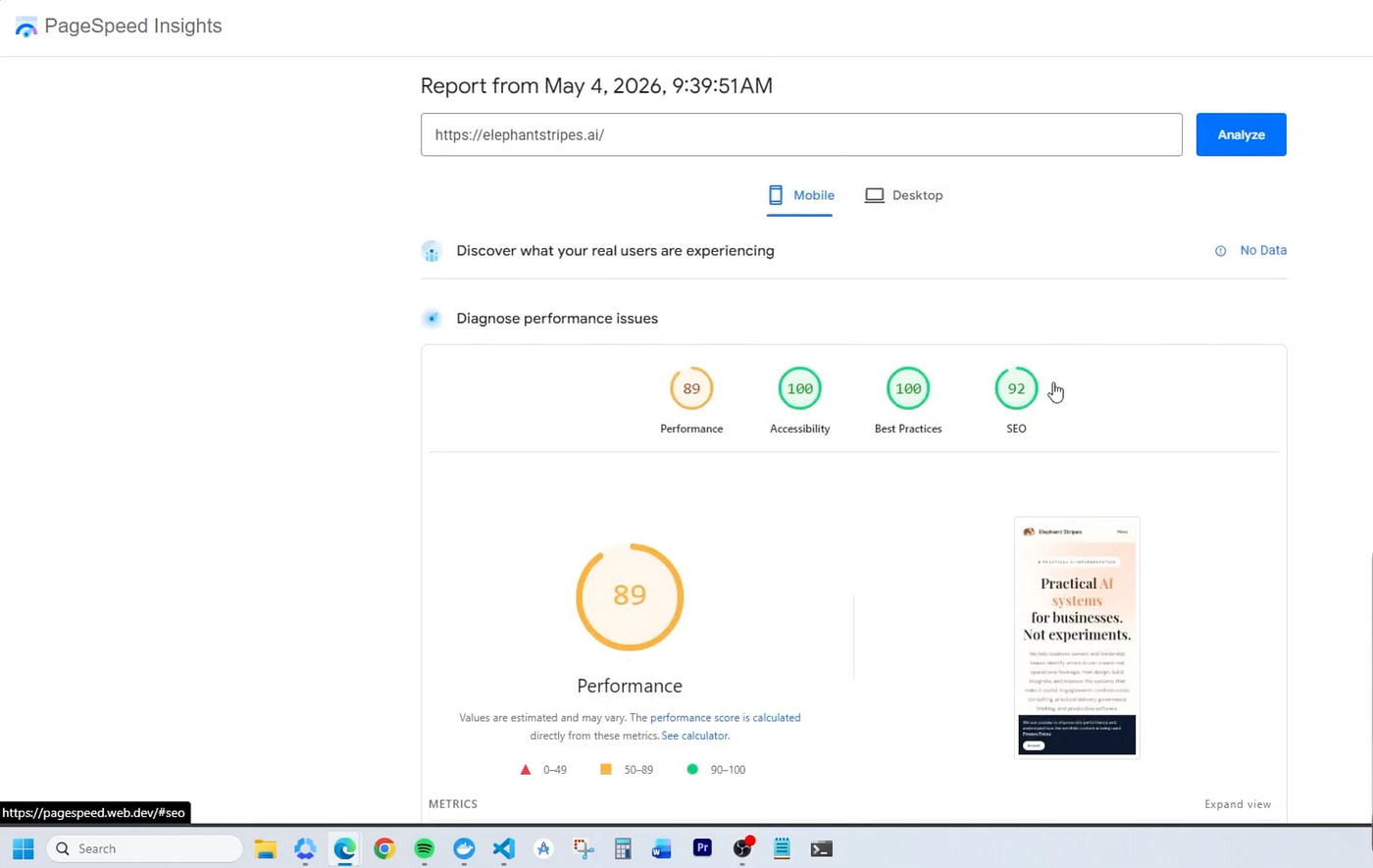
What you’re looking for is your SEO section specifically. In my case, the score was 92 out of 100. Solid, but PageSpeed flagged one thing:
the robots.txt was invalid.
That single issue is what we’re going to trace and fix.
Don’t try to investigate manually at this point. You won’t have enough context to know where the problem actually lives. That’s what the next steps are for.
Step 2: Set Up Your Project Context for Codex
Before you open Codex, make sure your project is structured properly. This is something people skip, and it makes AI-assisted development significantly worse.
At minimum, your project should have:
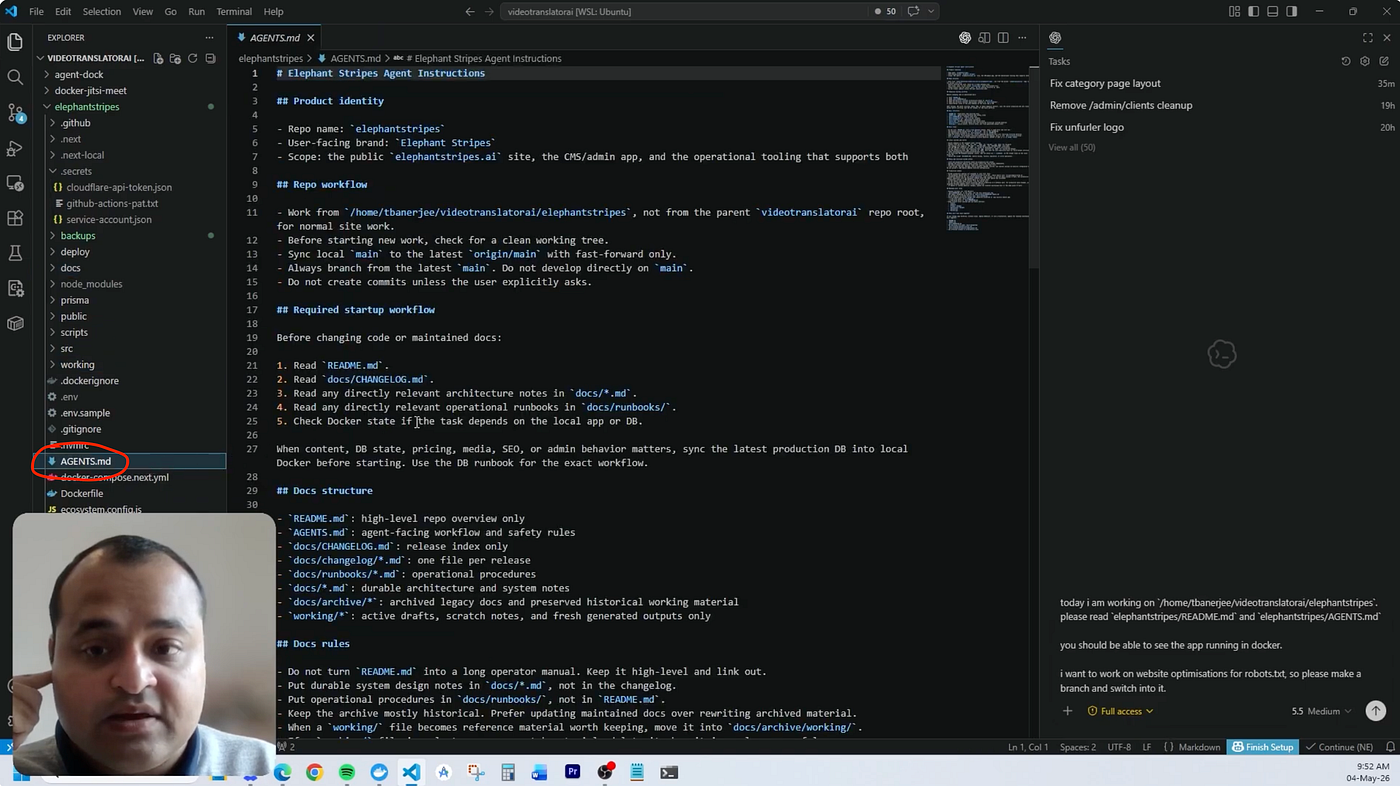
AGENTS.md: This file contains your instructions for how AI agents should work in this project. Think of it as your team handbook for Codex. What tools it can use, what conventions to follow, what to avoid.
README.md: This tells the project context. What the site does, how it’s structured, what the key rules and constraints are.
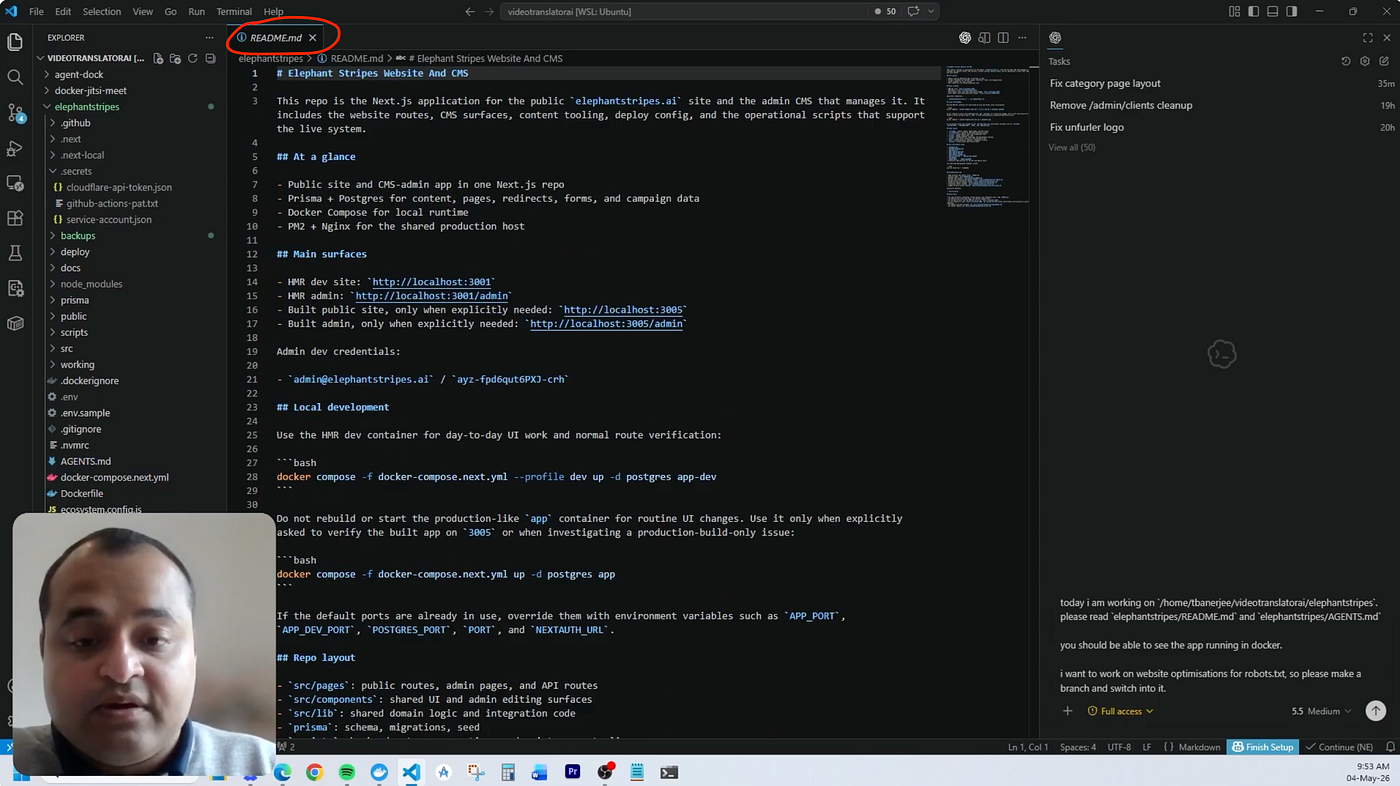
Codex reads both of these before it does anything. That grounding makes every subsequent prompt more targeted and useful.
If you don’t have these files yet, start simple. Even a hundred words in each file is better than nothing.
Step 3: Create a New Branch Before Touching Anything
Open VS Code and fire up Codex. Before you ask it to do anything, have it create a dedicated branch.
For this task, I named it: seo-robots-txt-optimisation.
You don’t have to work this way. You can work directly on main if you want. But branching is cleaner, safer, and makes it easy to review what changed before you merge anything back.
Codex can create the branch for you with a simple prompt. Something like:
“Switch to a new branch called seo-robots-txt-optimisation and read agents.md and README.md before we start.”
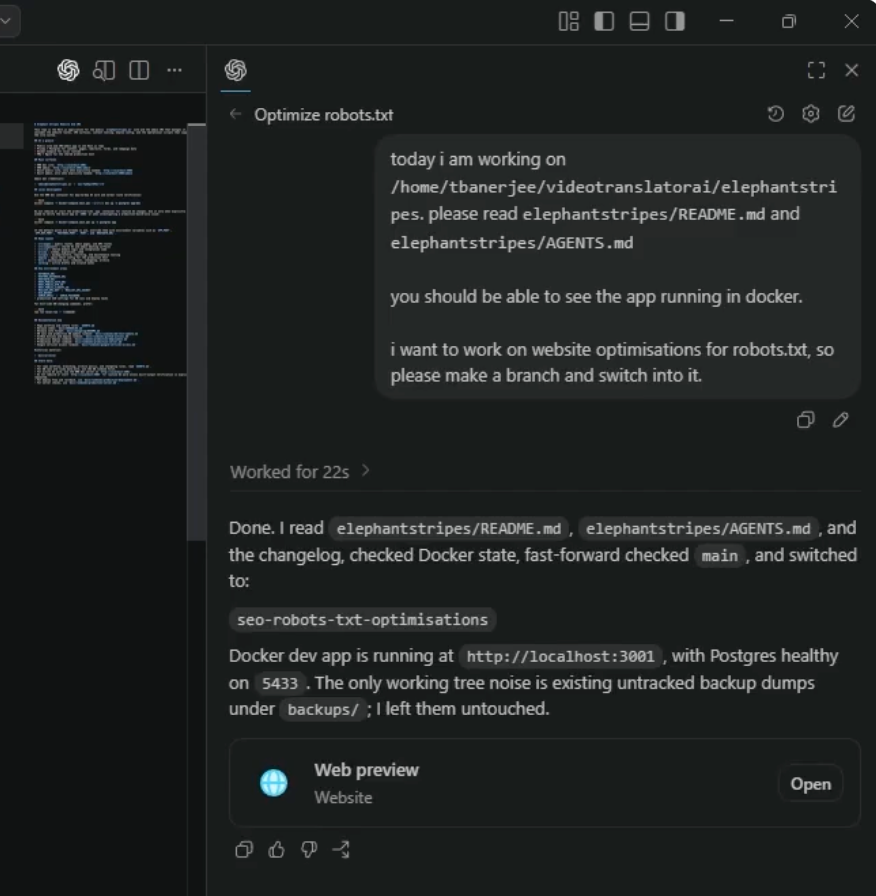
The prompt used to instruct Codex to create the dedicated branch.
That one step sets the context for everything that follows.
Step 4: Connect to the PageSpeed Insights API via Google Cloud
This is where things get useful.
Rather than reading PageSpeed results manually through a browser, you can pull the data programmatically through the PageSpeed Insights API inside Google Cloud.
The setup looks like this:
Create a Google Cloud project for your site (I have one for Elephant Stripes)
Enable the PageSpeed Insights API in that project
Create a service account with the right permissions
Download the service account JSON key and store it in a secrets/ folder in your project (not committed to GitHub)
Once that’s done, you can tell Codex to use that service account to pull the PageSpeed report directly.
My prompt was essentially:
“Use the service account in secrets/ and the PageSpeed Insights API runbook to download the PageSpeed report for elephantstripes.ai. Save it to the working folder.”
Codex runs the report, pulls the data, and surfaces exactly what PageSpeed Insights would show you in the browser, but now it’s in your project where Codex can reason about it.
The report confirmed: SEO score 92 on mobile, 100 on desktop. And the robots.txt issue was flagged.
Step 5: Understand What Codex Found
This is the part that would have taken me ages to figure out manually.
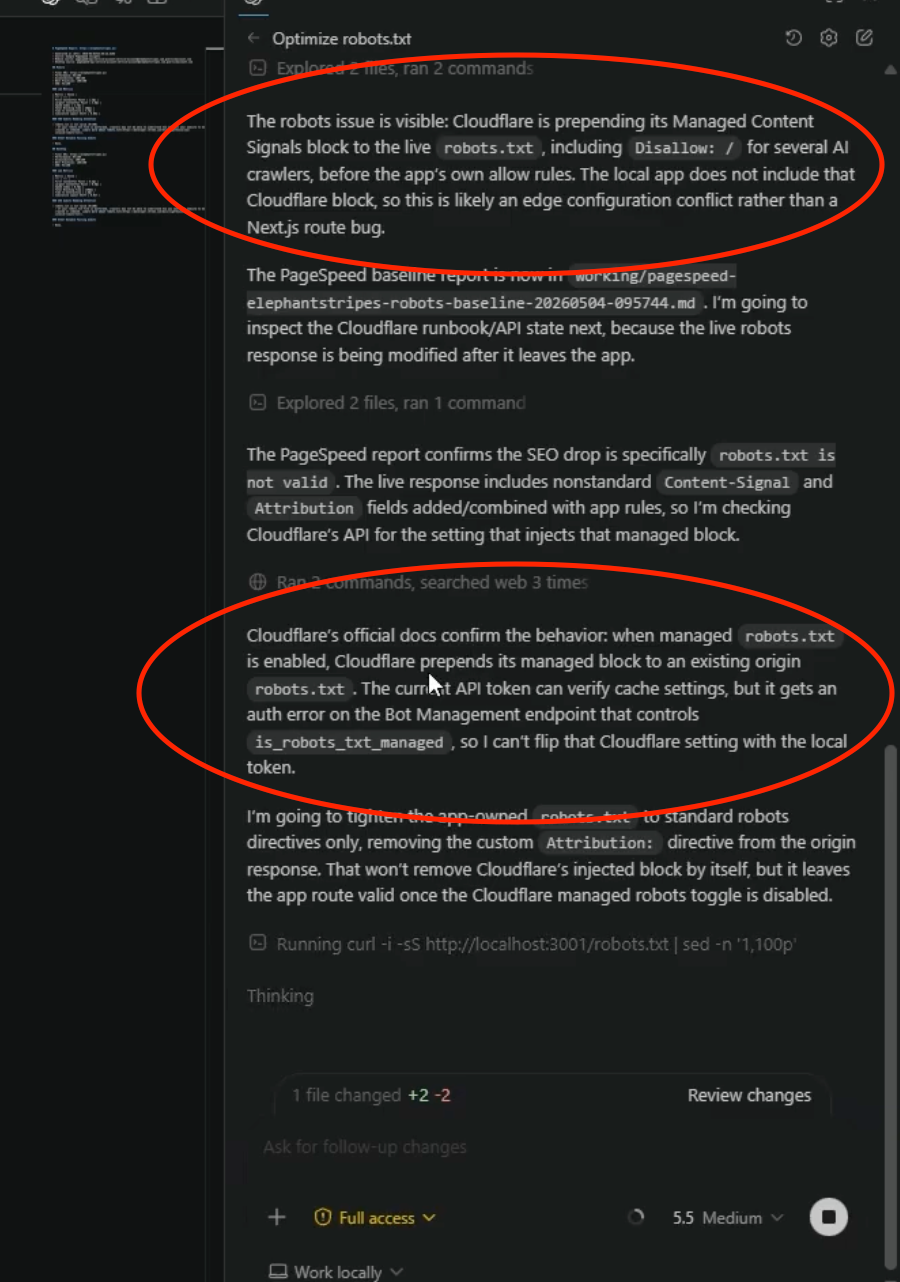
Codex read the live robots.txt being served at the domain and compared it to the robots.txt in the codebase. They didn’t match.
The finding was this:
Cloudflare was prepending its own Managed Content Signals block to the live robots.txt. This added a series of Disallow rules for AI crawlers before the app’s own Allow rules. The local file didn’t include any of that. So what PageSpeed Insights was reading, and what my actual codebase said, were two different things.
This is a Cloudflare edge configuration issue, not a code issue. The code was fine. The problem was how Cloudflare was serving the file at the network layer.
Without API access and Codex reasoning across both systems, I probably would have spent an hour checking the wrong things.
Step 6: Check Cloudflare via API
Now that we knew where the problem was, the next step was to look at Cloudflare’s bot management settings directly.
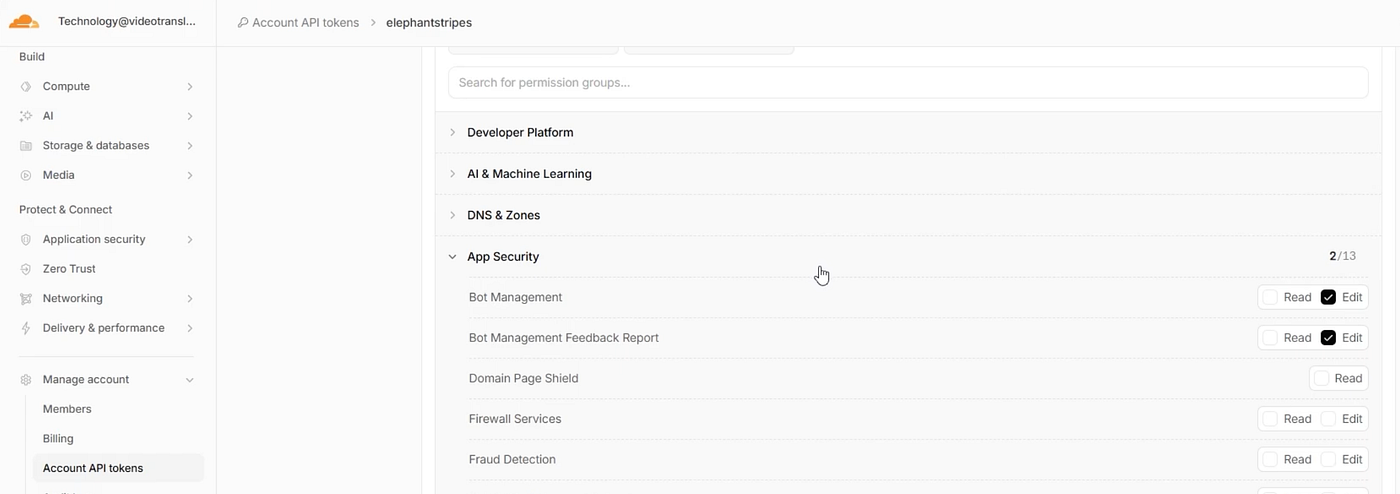
I already had a Cloudflare API token set up for Elephant Stripes with the right permissions: specifically, bot management read and update access.
I also had a Cloudflare performance runbook in my project docs that tells Codex how to interact with the Cloudflare API.
My prompt was:
“Use the Cloudflare API token in secrets/ and the Cloudflare performance runbook to check the bot management endpoint for elephantstripes.ai. Identify what’s being prepended to the robots.txt and fix it if you can.”
Codex hit the bot management endpoint, found the configuration that was causing the prepend behaviour, and reset it.
That’s it. The fix took less than two minutes once we knew what to look for.
Step 7: Verify the Fix
After Codex resets the configuration, go back to PageSpeed Insights and re-run the audit.
Check that:
The robots.txt is now marked as valid
Your SEO score has held or improved
No new issues have appeared as a result of the change
In our case, the robots.txt came back clean. The Cloudflare prepend was gone, and the SEO score came up.
The whole process from the first audit to the verified fix took under 20 minutes.
The Bigger Picture: Automate It
Running this manually is fine when something breaks. But the real value is in scheduling it.
You can set up an automated job using something like a cloud scheduler to run this exact process weekly. Codex (or another agent) pulls the PageSpeed report, checks it against your thresholds, and flags anything that needs attention.
If the report looks clean, nothing happens. If something looks off, you get an alert and you go fix it.
This is how you maintain consistent site performance across multiple clients without logging into dashboards every week. You get the report, review the flag, take action. Simple.
What This Workflow Actually Gives You
The specific fix here was a robots.txt misconfiguration caused by a Cloudflare migration. But the workflow transfers to almost any site health problem.
When you connect your AI tooling to Google Cloud and Cloudflare APIs, you can:
Pull performance benchmarks automatically
Detect configuration drift after deployments
Review nginx and server settings via script
Check security configurations at the edge
Run CI/CD health checks as part of your deployment flow
It’s not magic. It’s just connecting systems that would otherwise live in separate dashboards and giving Codex the context to reason across all of them.
The migration to Cloudflare introduced a subtle edge-layer issue that PageSpeed caught and Codex diagnosed. Manually, that’s a rabbit hole. With this setup, it’s a twenty-minute fix.
Quick Summary
Here’s the process end-to-end (TL;DR)
Run PageSpeed Insights and identify your SEO issue
Create a new branch in Codex before making changes
Connect to the PageSpeed Insights API via a Google Cloud service account
Let Codex pull and interpret the report
Use the Cloudflare API token to investigate edge-layer configurations
Apply the fix and verify with another PageSpeed run
Automate the whole thing on a weekly schedule
If you’ve already got Google Cloud and Cloudflare set up, steps 3 through 6 take minutes. The groundwork is the only slow part, and you only build it once.
Planning to cover how Google Analytics and Google Tag Manager connect to this same setup in the next video. Stick around if that’s on your radar.
Subscribe to Elephant Stripes’ YouTube channel for more AI updates and tutorial!