
Your Complete VideoTranslatorAI Starter Guide
Three tours, one place, zero guesswork.

We have been rolling out a series of in-app guided tours to help new and returning users get up and running quickly. Rather than keep them separate, here is everything in one place: the Prompt Tour, the Interpret Tour, and the Video Call Tour.
Each tour is available anytime inside the app by clicking Take a Quick Tour inside the chat..
Tour 1: Building a Prompt
Goal: Get the best summary result from the first meeting.
The Building a Prompt Tour walks you through how to customise the AI so it produces summaries that match your specific needs, your terminology, your format, your tone.
Step 1: Open the Custom Prompt Setup. Click the Custom Prompt Setup button inside your chat interface. This opens the prompt builder where you define your preferences.
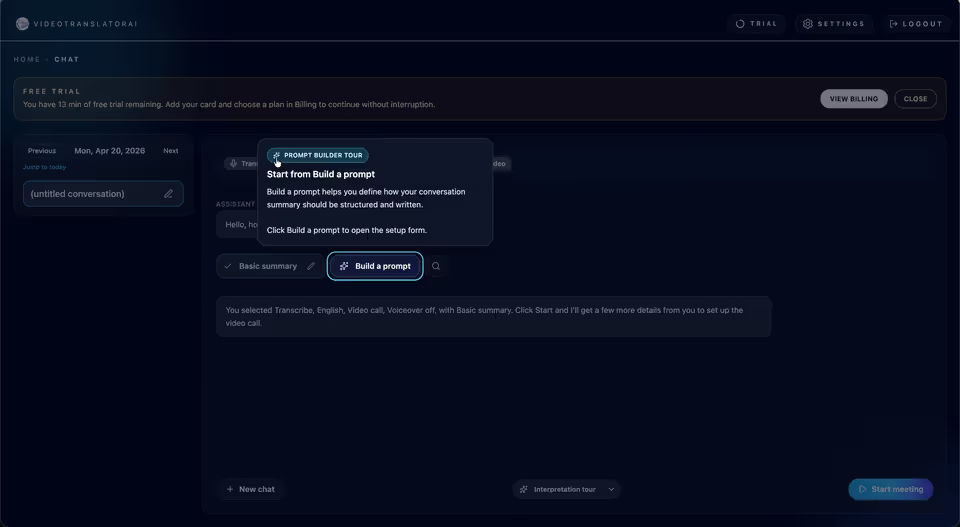
Step 2: Build your summary prompt. Choose from pre-set options to guide the AI: the Session Type (Team Meeting, Client Pitch, etc.), the Formatting Style (Bullet Points, Narrative, etc.), and the desired Tone (Formal, Action-Oriented, etc.).
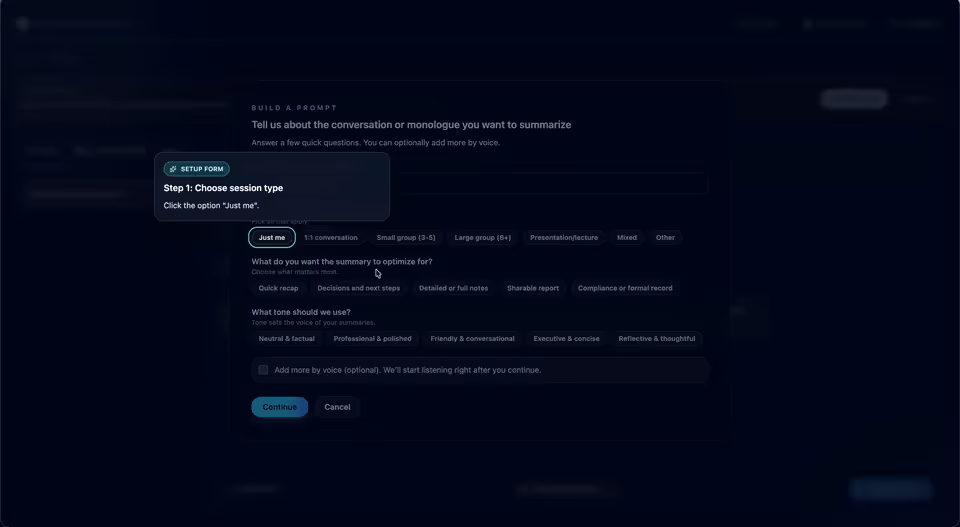
Step 3: Add context and constraints. Tell the AI about speaker roles, topic areas, and any terminology it should prioritise or avoid. This is where the summary goes from generic to genuinely useful.
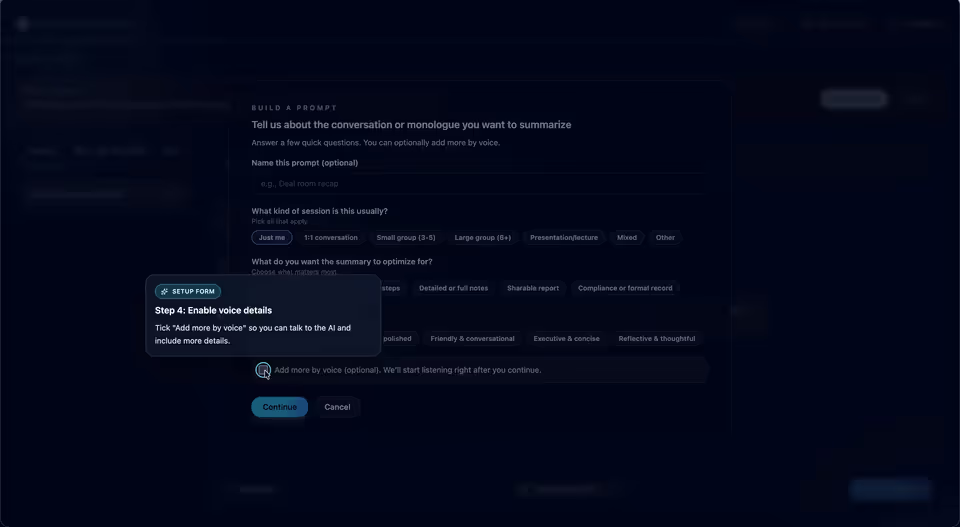
Step 4: Preview and save. Run a quick preview and save your configuration as a reusable template. You will not need to set this up again for the same type of session.
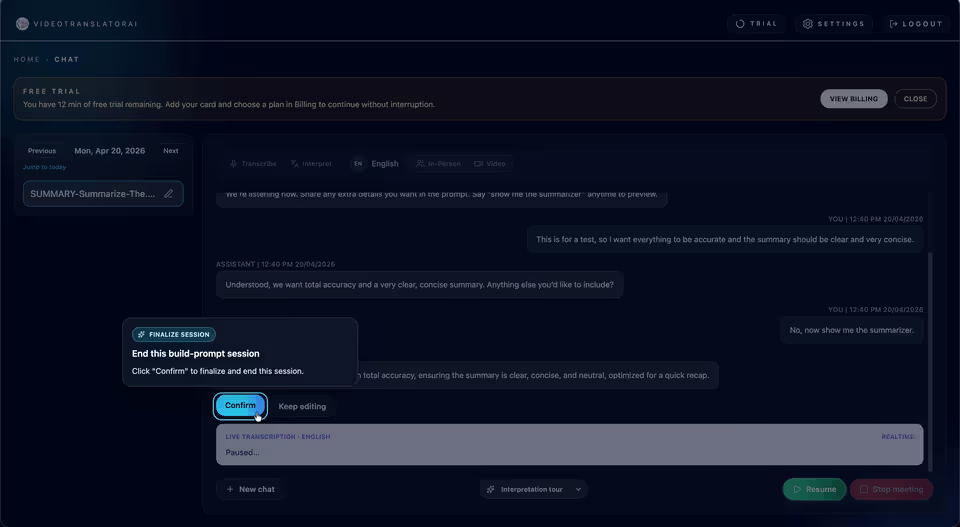
Best for: First-time users and anyone who wants consistent, customised summaries across meetings.
Tour 2: How to Interpret
Goal: Run your first live interpretation session with confidence.
The Interpret Tour walks you through VideoTranslatorAI's real-time interpretation mode, where two people speaking different languages can have a live conversation with AI handling the translation in both directions.
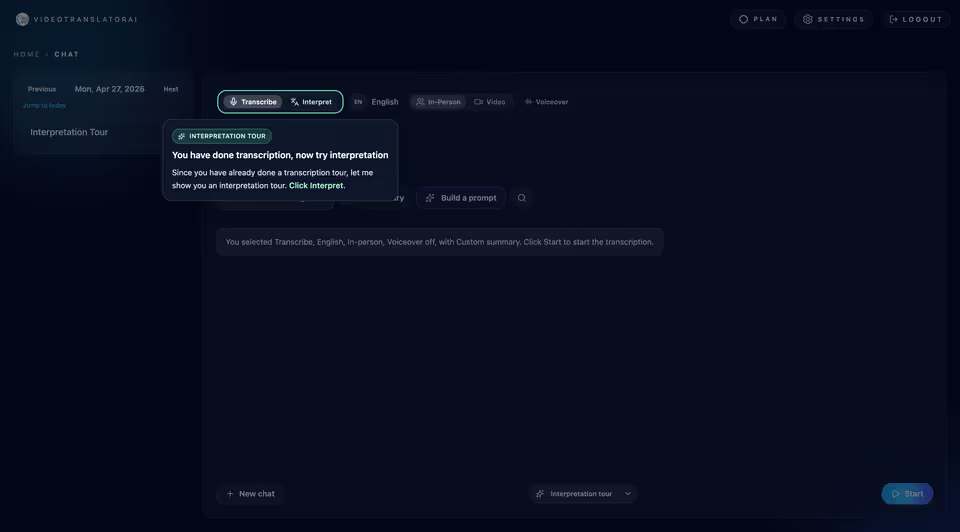
Step 1: Select interpretation mode. Click the ‘Interpret’ button located next to the Transcribe button, and you’re ready to go.
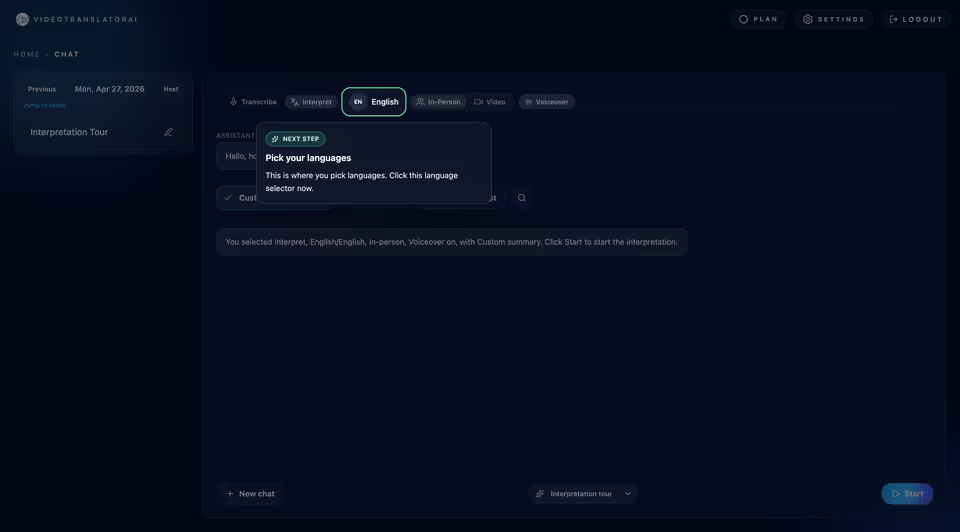
Step 2: Configure speakers and languages. Assign the languages to be used in your meeting. A maximum of two languages can be selected for in-person interpretation and video call mode.
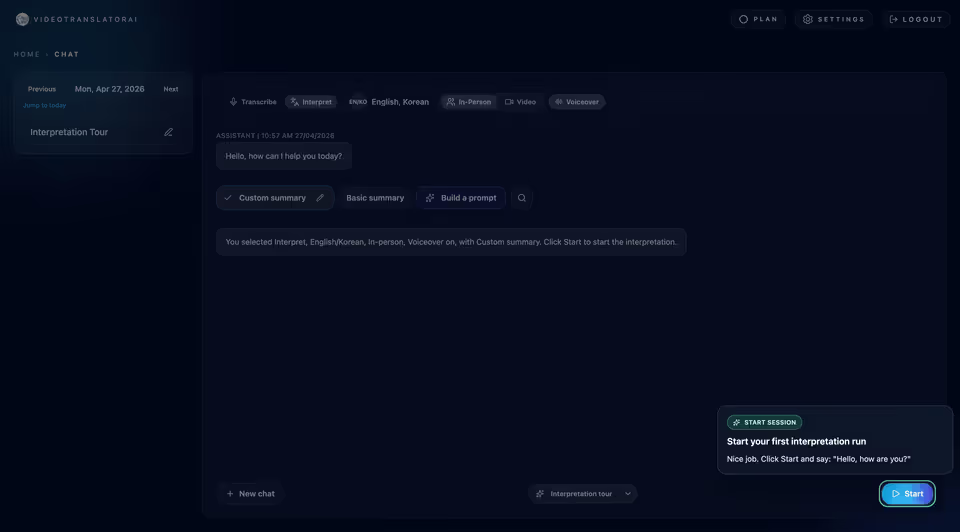
Step 3: Start the session. Activate live audio capture. The tour walks through microphone permissions, audio quality checks, and how to pause or restart mid-session.
Step 4: Review and export. When the session ends, access a structured summary of the conversation. Export it as a document or share it with participants directly.
Best for: Healthcare consultations, legal interviews, client meetings, and any setting where live, accurate interpretation matters.
Tour 3: Setting Up a Video Call
Goal: Host a multilingual video call in under two minutes.
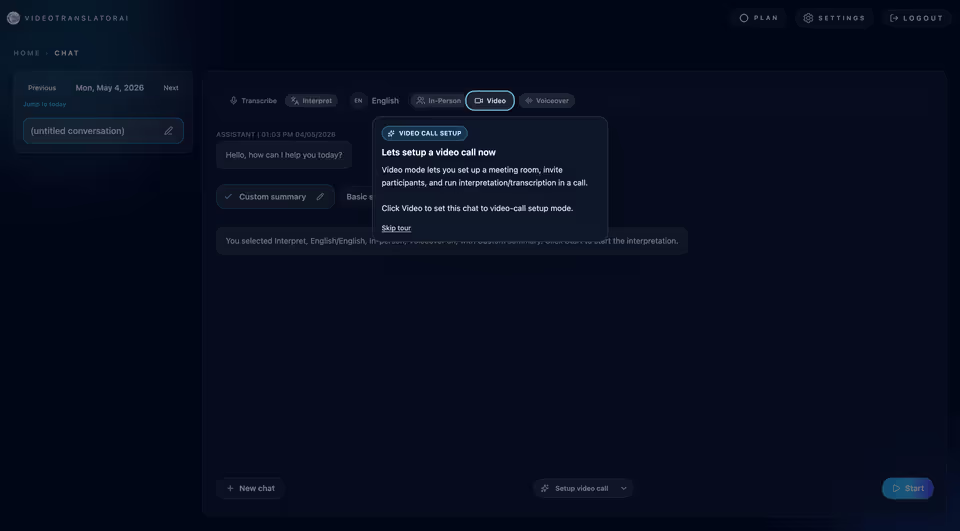
VideoTranslatorAI has its own built-in video call platform. No third-party meeting tool required. The Video Call Tour covers the full setup from selecting a mode to sending invitations.
Step 1: Activate Video Call mode. From your active chat, select Video Call mode. Choose whether the call will run in interpret mode (two languages) or transcribe mode (English-only transcription).
Step 2: Open the setup form. Fill in the meeting time and each participant's name and email address. If you are running interpret mode, assign each participant their preferred language here.
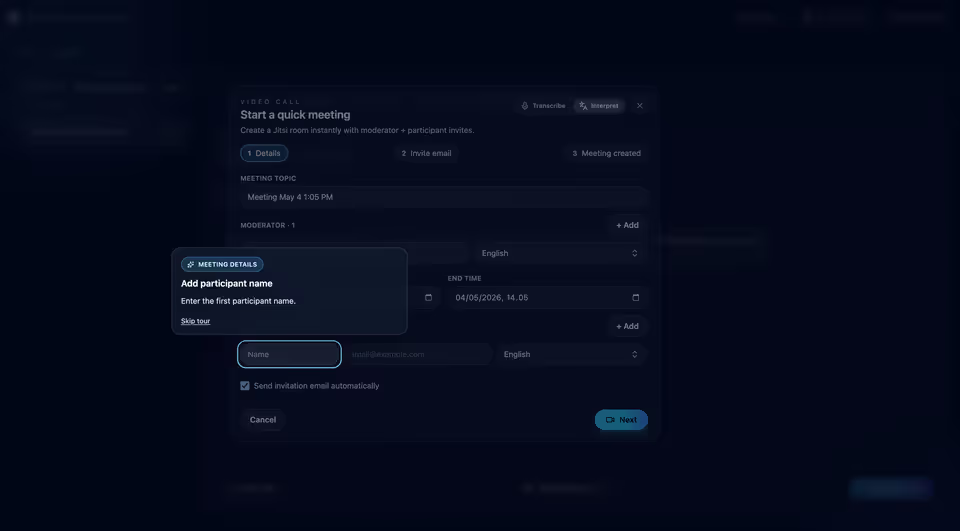
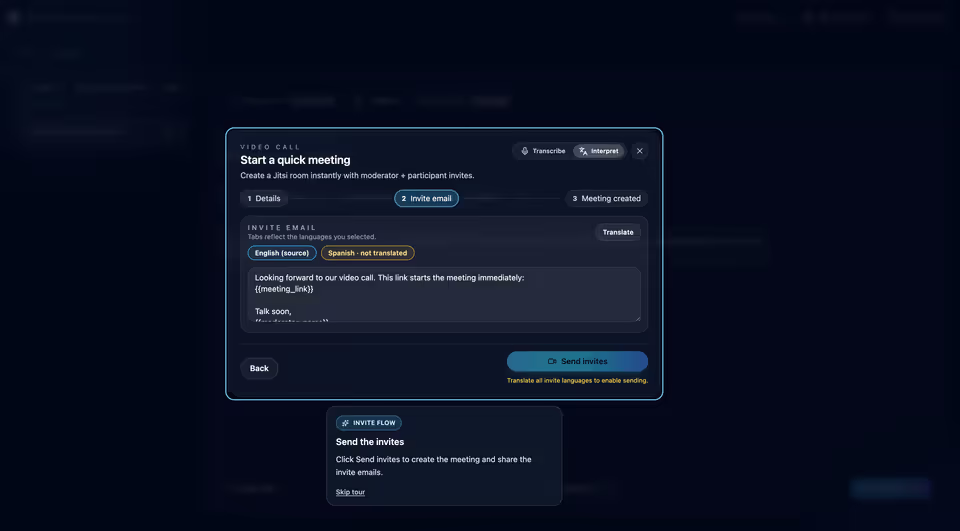
Step 3: Send meeting invitations. Generate the participant invitation and send it. VideoTranslatorAI automatically translates the invitation into each participant's language before it goes out.
Step 4: Run the call. Once both parties connect, live subtitles appear automatically. Toggle on voice-over if you want each participant to hear the conversation in their chosen language in real time.
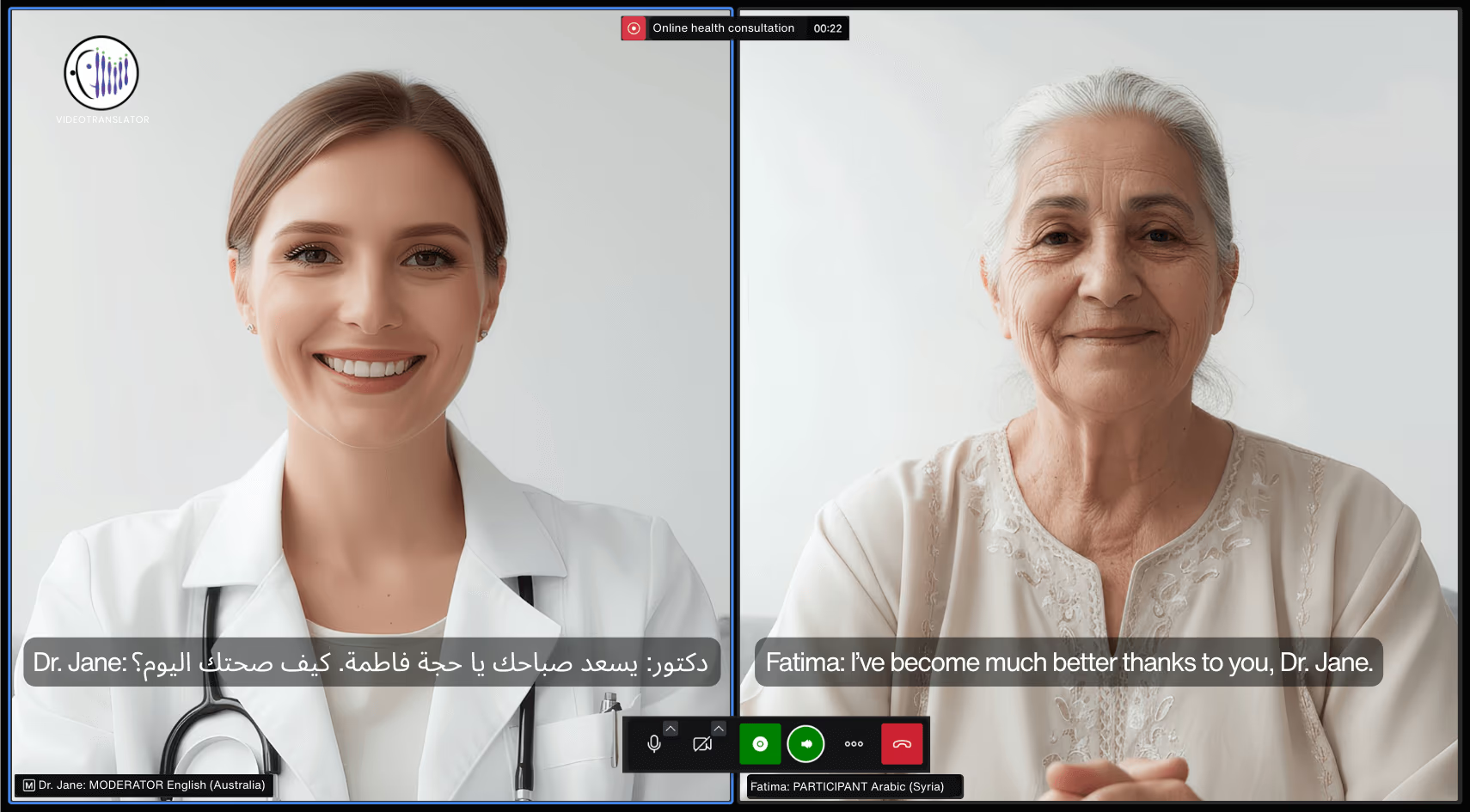
Best for: Cross-language client calls, consultations, and interviews where you need a self-contained multilingual video platform.
Ready to Start?
All three tours are live in the VideoTranslatorAI app now.